Photo mode in GTA VI: Photo Studio, selfies and where photos go
Quick facts
| Short answer | Photo Mode is called Photo Studio. Pause the game and choose Photo Studio, or press Square on PS5 or X on Xbox while paused. It works from the prologue on, with nothing to unlock. |
|---|---|
| Poses | Photo Studio cannot pose your character or change their expression. Poses and expressions live in the phone's selfie camera instead. |
| What you need | Nothing unlocked for Photo Studio. For selfies, the phone Camera app, which opens after the prologue once you are playing as Jason. |
| Status | Verified, November 26, 2026, against GameSpot (November 19, 2026) and Beebom (November 18, 2026), both read in full, with GTA Guide and Mobalytics in agreement. |
GTA VI has a full photo mode, and it is not buried in a settings menu or locked behind story progress. It is called Photo Studio, it sits in the pause menu, and it is available from the moment you take control of Lucia in the prologue. It gives you a free camera, five tabs of adjustments, and a Save Photo button that files the shot in your console's capture library. A second, lighter camera lives on the in-game phone, and it is the one that handles selfies. This page covers both, plus the limits that catch people out: greyed-out lighting options, and the time and weather controls that do not exist.
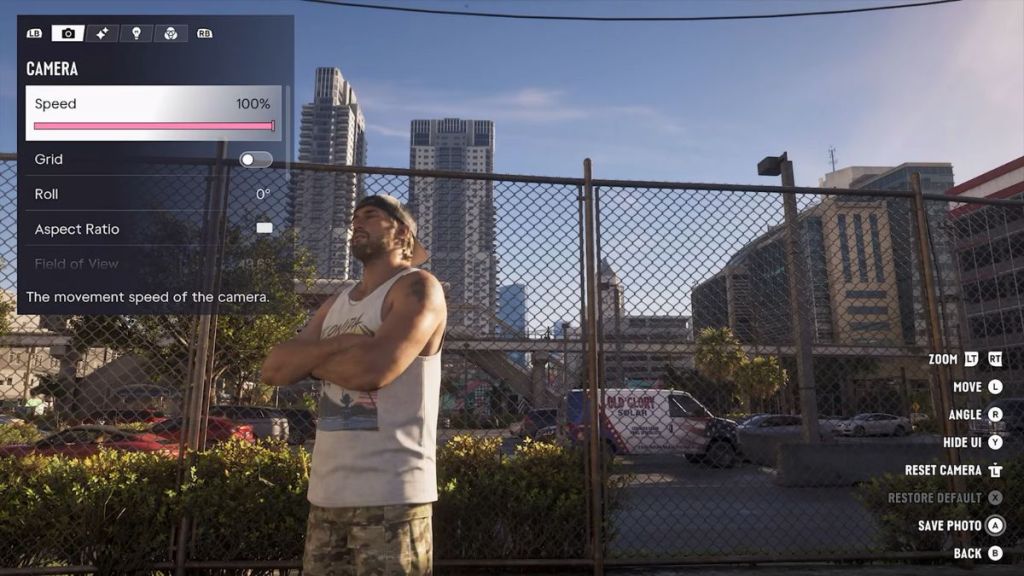
Open Photo Studio
Tick each step off as you do it; the ticks save on this device.
Steps done:
Pause the game
Press Options on PS5 or Menu on Xbox Series X|S at the moment you want to capture. The scene freezes where it is, even mid-drive.
Open Photo Studio
Select Photo Studio in the pause menu, or take the shortcut: Square on PS5 or X on Xbox while paused.
Frame the shot
Move, rotate and zoom the free camera until the shot looks right. The Camera tab below holds the framing tools, including the grid and the option to hide your character.
Adjust the tabs
Work through the Effects, Lighting, Vehicle and Overlay tabs as needed. Each tab is covered in the table under this section.
Save the photo
Choose Save Photo to file the shot in your console's capture library. Or press Triangle on PS5 or Y on Xbox to hide the interface and take a clean screenshot with the console's own capture button.
The five tabs, and what each one does
| Tab | What it changes |
|---|---|
| Camera | Moves, rotates and zooms the free camera. Also holds camera speed, the composition grid, roll, aspect ratio and field of view, the depth of field toggle, and the option to make your character invisible. |
| Effects | The image itself: exposure, contrast, tint, bloom and grain. |
| Lighting | Lets you place up to five light sources of your own in the scene, with stage light and camera flash presets, and a colour, intensity and range for each one. |
| Vehicle | Switches your vehicle's lights, such as headlights and turn signals, for night and street shots. |
| Overlay | Filters and the vignette, with a filter intensity control. Named filters include Cartoon Universe, Found Footage and Pixel Art. |
The limits to know
Set the scene before you pause. Photo Studio cannot change the time of day or the weather. If you want a sunset or a storm in the shot, wait for it in the game first, then pause.
Greyed-out options in cutscenes are normal. Photo Studio opens during cutscenes, but part of the toolkit is switched off there and the unavailable settings are marked Currently Unavailable. If the Lighting tab looks like it is not working, this is almost always why: finish the cutscene and open Photo Studio again in free roam, where everything is live.
No posing in Photo Studio. There is no way to pose your character or change their facial expression in Photo Studio. For that, use the phone camera below.
Selfies and the phone camera
The phone is the second camera. It opens after the prologue, once you are playing as Jason: press Up on the D-pad, open the Camera app, and switch to the front camera for a selfie. In selfie mode you pick your character's pose and facial expression, and when your partner is with you, their pose as well. The rear camera is the one to use when a mission asks you to photograph something. Phone shots are kept in the Gallery app on the phone itself, separate from Photo Studio's saves.
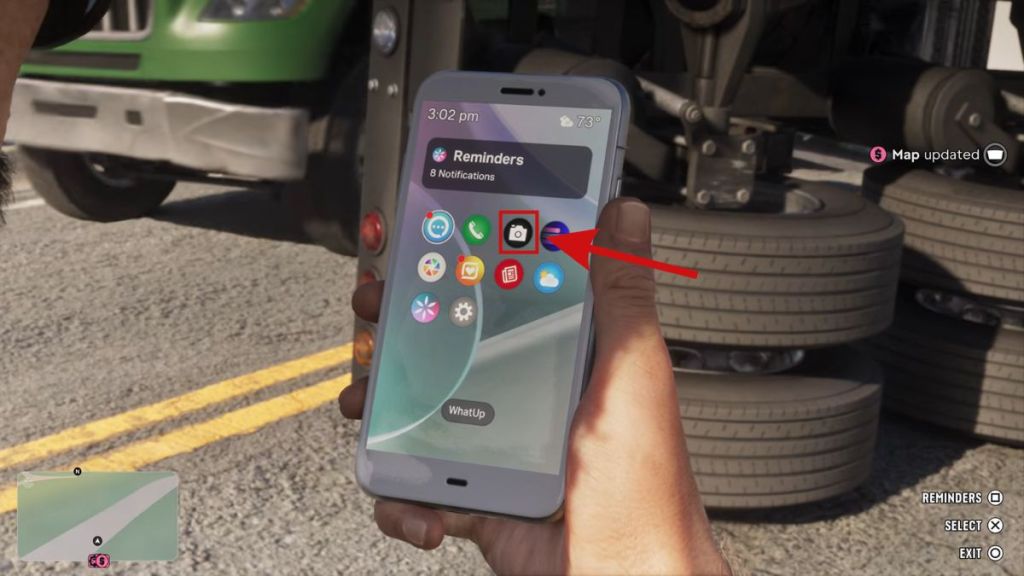
Reported (Beebom only): six poses and seven facial expressions for Jason in selfie mode, and a rear camera with up to 5x zoom, grid lines and 17 filters. The features themselves are confirmed by the sources in the box below; the exact counts rest on Beebom alone so far.
Where your photos are saved
| How the shot was taken | Where it is stored |
|---|---|
| Photo Studio, Save Photo, on PS5 | The console's Media Gallery. If it is not on the home screen, open Game Library and find Media Gallery among the installed apps. |
| Photo Studio, Save Photo, on Xbox | My games & apps, then Apps, then Captures. |
| Phone camera or a selfie | The Gallery app on the in-game phone. |
The two stores do not mix: Photo Studio saves never appear in the phone's Gallery, and phone photos stay on the phone.
Photo mode questions
Yes. It is called Photo Studio, it opens from the pause menu (or with Square on PS5 or X on Xbox while paused), and it is available from the prologue with nothing to unlock.
Most likely you opened Photo Studio during a cutscene. Part of the toolkit is disabled there and the settings show as Currently Unavailable. Open it again in free roam and the Lighting tab, which places up to five lights of your own, works in full.
No. Every guide checked for this page agrees Photo Studio has no time or weather controls. Set the conditions in the game first, then pause and shoot.
To your console, not the phone. On PS5 they land in the Media Gallery; on Xbox, in My games & apps, Apps, Captures. Photos taken with the phone camera are the ones stored in the in-game Gallery app.
After the prologue, press Up on the D-pad, open the Camera app and switch to the front camera. There you can set your character's pose and facial expression, and your partner's pose when they are with you.
Sources
- GameSpot, "How To Use Photo Mode In GTA 6", November 19, 2026, read in full November 26, 2026: gamespot.com. Photo Studio in the pause menu and the Square / X shortcut, the five tabs and their functions, the Hide UI button, cutscene use with limited functions, and the phone selfie camera with poses and partner poses.
- Beebom, "How to Use Photo Mode in GTA 6", November 18, 2026, read in full November 26, 2026: beebom.com. Available from the prologue with no unlock, the four-step access route and Save Photo, up to five light sources, cutscene settings marked Currently Unavailable, no time or weather control, and the phone camera route, poses and Gallery app.
- GTA Guide, "GTA 6 photo mode: how to open and where photos are saved", read November 26, 2026: gta.guide. Corroborates the pause-menu route and shortcut, and carries the save locations: console gallery for Photo Studio, the in-game Gallery app for phone photos.
- Mobalytics, "GTA 6: How to Use Photo Mode", updated November 20, 2026, read November 26, 2026: mobalytics.gg. Corroborates the tab list, the five light layers, availability from the prologue, and the set-the-scene-first limit.
Related
First-Person in GTA VI: The Glitch and the Built-In Views
The other camera question: no official first-person mode, the vehicle glitch, and the built-in views.
GTA VI Phone Apps Guide: Every App Explained
Every app on Jason and Lucia's phones, including the Camera and Gallery apps this guide uses.
How to Change Clothes and Outfits in GTA VI
Dress for the shot first: wardrobes, clothing stores and saved outfits.