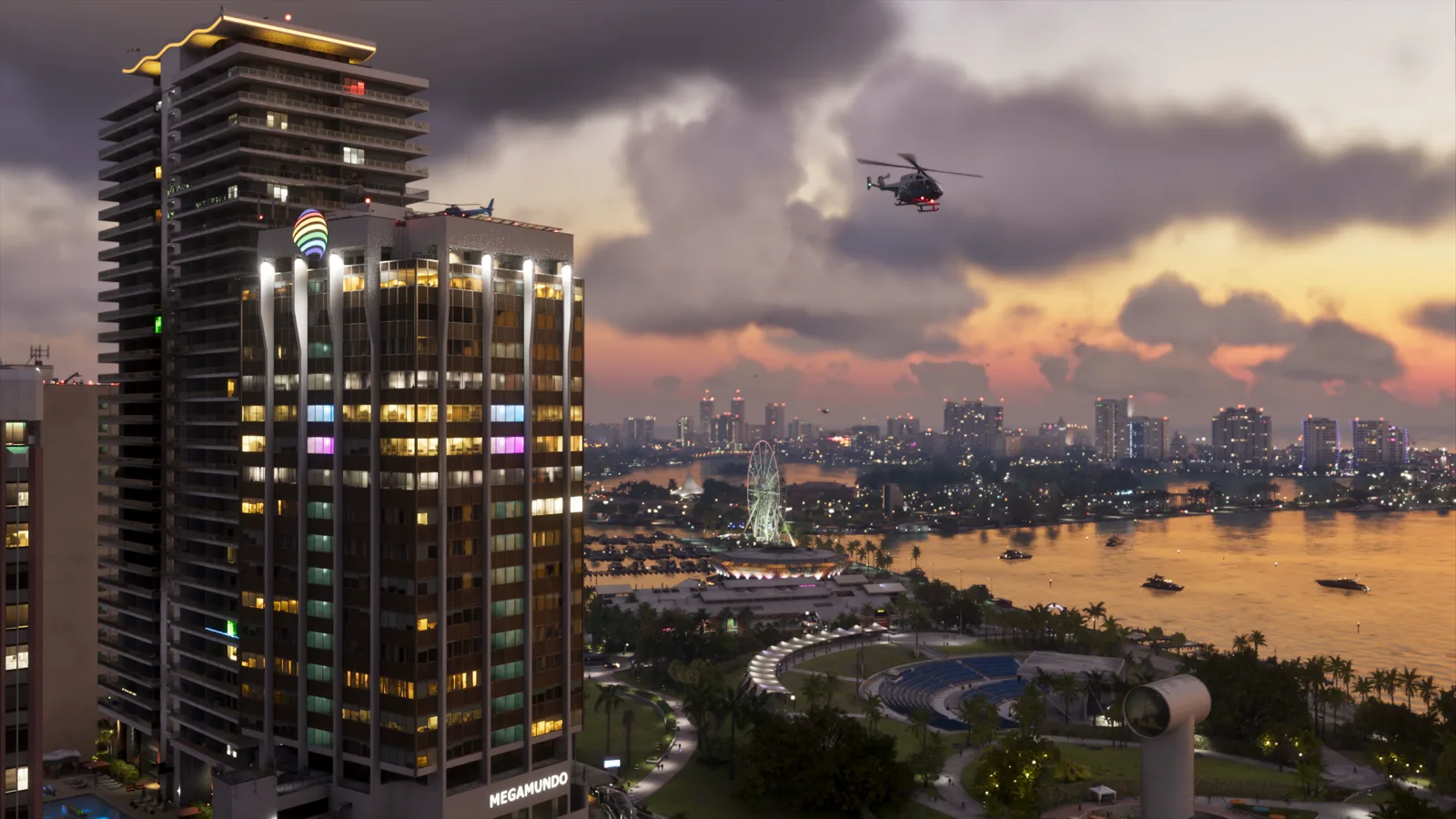
HDR & Blurry Picture Fix
Washed out or soft? The calibration chain, TV, console, then game, in the order that fixes it.
Read the guide →Most big games ship with a graphics choice: a fidelity mode that looks its best at 30 frames per second, and a performance mode that targets 60 with a softer picture. GTA VI does not. Push Square, writing up Digital Foundry's analysis on November 18, 2026, put it plainly: there are "no graphics options to choose from" in that sense. Rockstar built one version of the game per console and tuned it themselves, and the frame rate question is settled by Rockstar's own statements, covered in full in the Performance Guide.
That sounds like bad news for a settings guide. It is the opposite. With no mode to pick, everything that decides how the game looks and feels on your screen is a setting you control: a short list of in-game display sliders, the output settings on your console, and the picture settings on your TV. Get those right and you get the exact picture Rockstar's artists signed off on. Get them wrong and no patch is coming to save you, because the game is not the broken part.
The first launch walks you through a short run of setup screens before the story starts. The Daily Checkpoint's launch-day walkthrough (November 19, 2026) lists them in this order: Navigation Experience, UI Text Size, Subtitles, and Brightness. Three of the four deserve ten seconds of thought each.
Subtitles do not cover everything by default. Walkthroughs show the launch setting limiting them to missions only, or off entirely. Set them to cover all dialogue. Rockstar writes dialogue that plays while you drive, while you fight, and while a radio DJ talks over your passenger. On a couch, with the sound at a sane level, you will miss lines without them.
Brightness is a test, not a number. The screen shows the Rockstar logo on a dark background and asks you to move the slider until the logo is barely visible. Walkthroughs show the slider starting at 15, but that number means nothing across different TVs. Use the test on your own screen, in the lighting you will actually play in. Too low and interiors crush into black soup. Too high and your blacks turn grey and the neon loses its punch.
Nothing here is permanent. Every first-boot screen comes back later inside Settings, Brightness under Settings, Display, Brightness Calibration. A choice you rush at midnight can be fixed properly the next day.
The Display tab is a short list of sliders, and most of them can stay exactly where Rockstar left them. These are the ones worth a decision.
Motion Blur Strength (default 3 of 10). This decides how much fast movement smears. At 30 frames per second, a little blur is part of how the game hides the gaps between frames: Raising it hides judder on camera pans; lowering it keeps the image sharper at speed. Start at the default 3. If fast driving looks mushy, drop it to 1 or 2. If camera pans look stroby and choppy, raise it toward 5. Ten minutes of driving tells you more than any settings video, because this one is taste, not correctness.
HDR Calibration. On an HDR TV, the Display settings include an HDR calibration screen with three sliders: Max Brightness, Paper White and Black Levels. You cycle through its test images with R1 or RB and set each slider against the image on screen (launch-day walkthroughs, November 19, 2026). Two rules make this screen work. First, run your console's HDR calibration before this one, so the game is adjusting a signal that is already right. Second, set the sliders by the test images, never by numbers copied from a video: those numbers belong to someone else's TV. The full order, and what to do when HDR looks washed out, is the HDR and blurry picture fix guide.
The effects intensities (all default 5). Player Status Effects, Hit Effects and Awareness Effects control how hard the screen reacts when you are hurt, drunk, exhausted or spotted. At full strength they are part of the game's physical feel. If screen effects bother you, or you are prone to motion sickness, pull all three down toward 3 (one launch-day settings video pulls all three down to 3). There is also a Brightness Reduction option that softens bright lights in the world without dimming the HUD, and a Flashbang option that swaps the blinding white flash for a dark one.
Safe Zone. This pulls the HUD inward from the screen edges. Set it once, before the story starts, if anything on the edges of your screen looks clipped by the TV's frame.
No film grain toggle and no chromatic aberration switch appear in the reported Display menu, despite a long run of pre-launch videos promising both. If a settings video walks you through either one, it was made before anyone had the game.
Do these in your TV's Game Mode picture preset (the TV steps are below), because HDR calibration is stored per picture mode on most TVs. Calibrate in a different mode and the game mode keeps the wrong numbers.
Steps done:
Leave Resolution on Automatic. The console and the TV negotiate the best signal themselves, and GTA VI's output is fixed by the game, not by this menu.
Sony's own support wording draws the line: Always On converts everything to HDR, including games and apps that are not HDR compatible, while On When Supported leaves those in SDR. GTA VI outputs HDR itself, so it looks the same either way; On When Supported keeps everything else honest.
Three screens, one symbol each. Move the slider until the symbol is barely visible, then stop. Do it in the room lighting you will play in. This calibration is the foundation the game's own HDR screen builds on, so it comes first.
Variable refresh rate cannot add frames to a 30 FPS game, and at that rate it does little either way. Automatic is still the right default: it costs nothing here and it is what your other games want.
Steps done:
Check the 4K TV details page first. It lists what your TV accepts, with green ticks when everything works. If a feature you expected is missing, the port or the cable is the usual suspect, and the last step covers it.
Microsoft's calibration tool walks you through test patterns. Set each one to the point the pattern is just barely visible, in your Game Mode picture preset and your usual room lighting. This is the console-level calibration the game's HDR screen builds on.
Allow auto low-latency mode lets the console switch your TV into Game Mode by itself. Variable refresh rate cannot add frames to a 30 FPS game, but it is the right default for the console as a whole.
Microsoft has warned since 2020 that on some TVs only specific HDMI ports support HDMI 2.1. On the wrong input, the calibration above goes to waste, because the signal the TV receives is the limited one.
Most TVs ship with picture processing that actively fights a game like this, and it stays on until you switch it off. These four steps are general advice for any game, and they are the single biggest free improvement most players can make.
Steps done:
Game Mode switches off the processing that delays the picture between your controller and the screen. If your console and TV both support ALLM, the console can switch the TV for you; check it happened rather than assuming.
It goes by TruMotion, Motionflow, Auto Motion Plus and a dozen other names. It invents frames between the ones the game draws. On a 30 FPS game that produces a soap opera look on slow camera moves, smearing behind fast cars, and a lot of added input lag. Game Mode switches it off on most TVs, but check, because some sets keep a mild version running.
Noise reduction smears the fine texture detail this game is known for. Dynamic contrast re-maps brightness scene by scene, which fights the game's own lighting and undoes your HDR calibration one cut at a time.
Neutral is 0 on some brands and the middle of the range on others. A 1440p picture upscaled to 4K needs no artificial edge enhancement, and extra sharpening makes the upscale look crunchy instead of smooth.
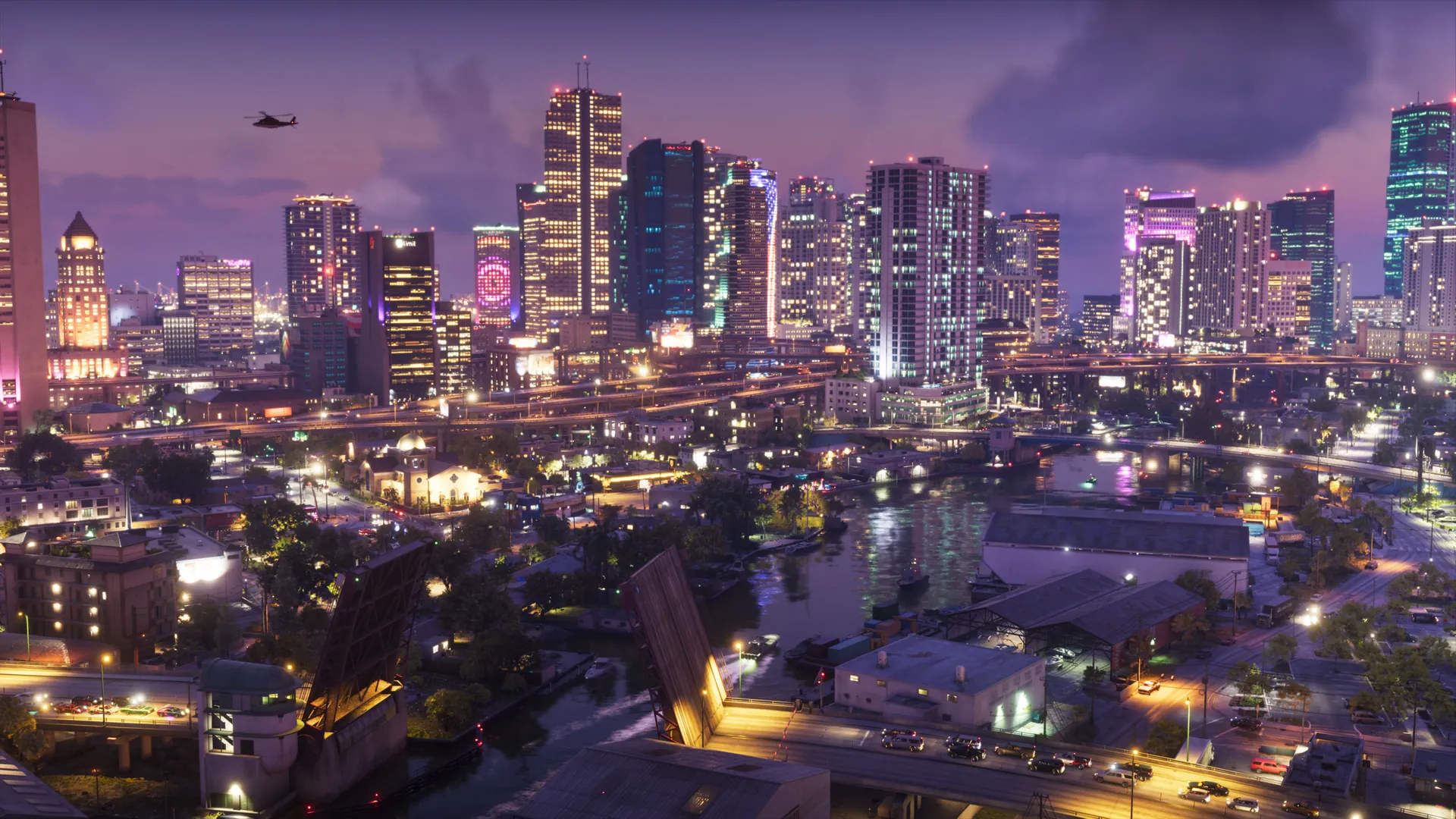
| Console | Drawn at | Upscaler | What it means for your settings |
|---|---|---|---|
| PlayStation 5 | 1440p to 4K | Rockstar TAA | The standard case. Every step above applies exactly as written. |
| PlayStation 5 Pro | 1440p to 4K | PSSR 2 | The cleanest upscale of the four, plus ray-traced shadows. Same steps, same order. The Pro buys clarity, not frames. |
| Xbox Series X | 1440p to 4K | Rockstar TAA | The same picture path as the base PS5. The Xbox steps above are your list. |
| Xbox Series S | 720p to 1080p | AMD FSR 4 | The softest picture of the four, and no setting removes that entirely. The TV steps matter most here, because a clean chain hides a soft render better than a sharpened one. |
Playing through Xbox Cloud Gaming instead? The cloud version runs at Series S graphics settings (Rockstar, November 10, 2026), and Rockstar's own caveat applies: connection speeds and other technical factors may influence performance in ways that would not affect local play. Your TV steps still apply. The console steps are replaced by your connection, and a streamed picture will always be a little softer than a local one.
No. There is no performance mode and no fidelity mode on any console, and Rockstar told Kotaku and Push Square on November 18, 2026 that a 60 or 40 FPS mode is not coming to this hardware, because the processor cannot run the game's simulation at higher frame rates. The Performance Guide has Rockstar's statements in full.
No. Motion smoothing invents in-between frames on the TV side. The game still renders 30 frames per second, your inputs still wait for them, and the invented frames smear and artifact around fast movement. It adds input lag while pretending to add smoothness. Leave it off.
Start at the default, 3 of 10. Lower it to 1 or 2 if fast driving looks smeared and you want maximum clarity. Raise it toward 5 if camera pans look choppy and stroby, because at 30 FPS the blur is what smooths the gaps between frames. There is no wrong answer here, only your eyes on your screen.
On, if your TV supports HDR, and calibrated in the right order: TV, then console, then the game's HDR Calibration screen. A washed-out HDR picture almost always means the calibration chain is wrong, not that HDR should be off. The HDR and blurry picture fix guide walks the whole chain in order.
No. Nothing in this guide raises or lowers the frame rate, because nothing available to you does. These settings change how the fixed picture is presented: its brightness, its black level, its sharpness, its delay. Presentation is not a small thing. It is the difference between the game Rockstar built and a grey, smeared copy of it.
Menu details come from launch-day walkthroughs of the shipped game, cross-checked between two independent outlets. Where this guide explains a term or a TV feature, the explanation is general knowledge and adds no GTA VI facts of its own.
Washed out or soft? The calibration chain, TV, console, then game, in the order that fixes it.
Read the guide →
What Rockstar actually announced about frame rate and resolution, in plain words.
Read the guide →