Best GTA VI Settings
The in-game sliders, console output and TV settings worth changing, and the ones to leave alone.
Read the guide →Washed out, with grey blacks, is a tone mapping problem. HDR works by the console deciding, once, how the game's brightness range fits your TV's brightness range. That decision is called tone mapping. If your TV then applies its own tone mapping on top, because its gaming HDR mode is set to remap rather than pass through, every dark scene gets lifted and every highlight gets clipped twice. Blacks go grey, neon loses its color, and the game looks like it is being played through fog. This is the single most common cause, and it is a settings problem, not a game problem.
Soft and blurry has three stacked causes, only two of which are yours. The first is the render itself: the game draws at 1440p on PS5, PS5 Pro and Series X and upscales to 4K, and at 720p on Series S upscaled to 1080p (Rockstar, November 18, 2026; the Performance Guide has the full table). That softness is the floor. The second is your TV: noise reduction smears fine detail, and extra sharpening turns the upscale's smooth edges crunchy. The third is motion: TV motion smoothing smears fast movement, and the game's own Motion Blur Strength slider adds its share on camera moves. Fix the two that are yours and the floor is what remains.
One thing the picture is not: broken HDR. Digital Foundry's tech review suspects the game's HDR pipeline uses inverse tone mapping, which in plain words means the HDR picture is built up from the game's standard image rather than rendered as a separate HDR master. They still rated the presentation excellent, measured highlights past 1,500 nits, and produced their entire tech video in HDR because the night contrast earned it. If your HDR looks bad, the evidence points at your chain, not at Rockstar's.
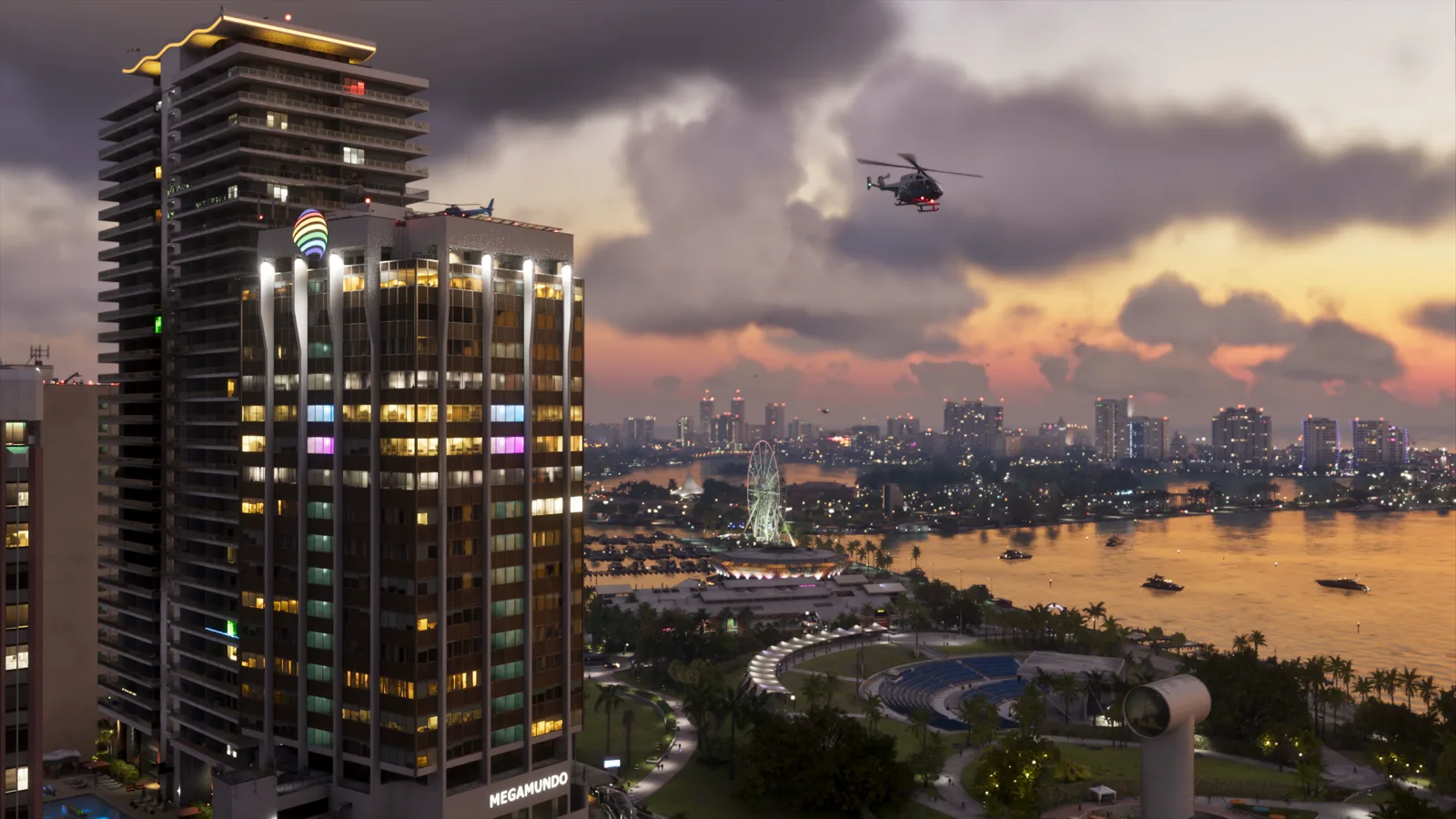
Work down this list without skipping. Each step assumes the ones above it are done, and changing the order is how most players ended up with a bad picture in the first place: a game slider tuned against a TV that was still remapping the picture is wrong the moment the TV is fixed. The sequence follows VGC's recommended order (November 19, 2026): TV, then console, then game.
Steps done:
Every later step is stored against the picture mode you are in, and on most TVs HDR calibration is per mode. Calibrating in Cinema and playing in Game gives you Game Mode's uncalibrated defaults. Game Mode also switches off most of the processing the next steps deal with.
HGiG is the setting that tells the TV to stop re-mapping game HDR and present what the console sends. On LG sets it sits under HDR Tone Mapping with Game Mode on; Samsung, Panasonic and others carry it under their game or HDR settings. Most TVs leave it off by default (VGC). If your TV has no HGiG option, leave its tone mapping on and carry on: the remaining steps still fix most of the problem.
Motion smoothing off (TruMotion, Motionflow, Auto Motion Plus and their cousins). Noise reduction off. Dynamic contrast off. Sharpness to its neutral value, which is 0 on some brands and mid-range on others. Each of these re-processes a picture the console already finished.
On PS5: Settings, Screen and Video, Video Output, Adjust HDR. Set each of the three screens so the symbol is barely visible, and set HDR itself to On When Supported (Sony's wording: Always On converts even non-HDR games and apps; On When Supported leaves them in SDR). On Xbox: Settings, General, TV & display options, Calibrate HDR for games, and follow the patterns to the same barely visible point. Do this in your usual room lighting.
In the game: Settings, Display, Brightness Calibration. Move the slider until the Rockstar logo is barely visible against the dark background, on your screen, not to a number you read online. Too low crushes interiors into black. Too high greys the blacks and washes the neon, which is the complaint this guide exists to fix.
The Display settings carry an HDR calibration screen with three sliders: Max Brightness, Paper White and Black Levels. Cycle its test images with R1 or RB and set each slider against the image in front of you (launch-day walkthroughs, November 19, 2026). Max Brightness is about your panel's peak, not the game's: the game can send highlights past 1,500 nits, and the calibration exists so the console and game learn what your TV can actually show.
Microsoft has warned since 2020 that on some TVs only specific HDMI ports support HDMI 2.1. On a limited port, the HDR signal itself is the cut-down version and no calibration recovers it. Use the port your TV's manual marks for full gaming features, with the cable that came with the console or a certified Ultra High Speed cable.
Load a night scene. Neon should hold its color, headlights should punch, and the sky should stay black rather than grey. If highlights still clip to white, revisit step 4, the console calibration, before touching the game sliders again: the console sets the ceiling everything else works under.
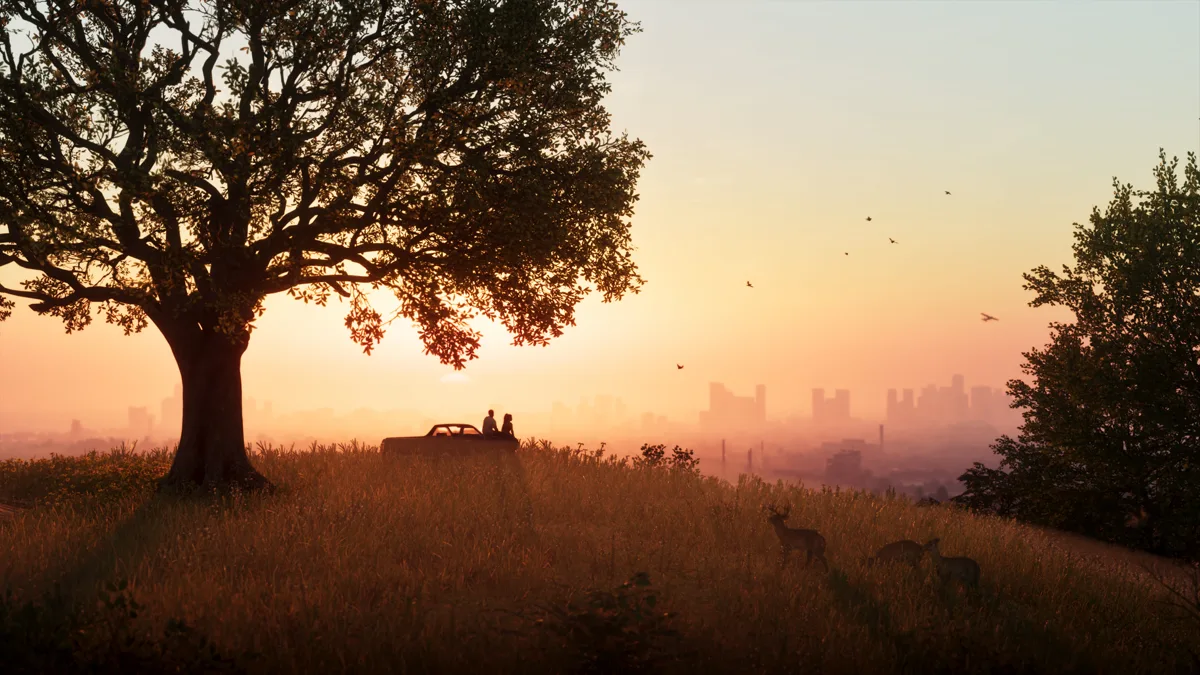
Run the chain first. If the picture is still softer than you hoped with the chain right, what remains is the render itself, and it differs by console. PS5 Pro owners get the cleanest upscale, through PSSR 2. Base PS5 and Series X sit one step below, on Rockstar's TAA. Series S owners get the softest picture of the four, drawn at 720p, and no setting changes that; the honest advice is the TV steps above, because a clean chain hides a soft render better than sharpening does. Cloud players add streaming on top: the cloud version runs at Series S settings, and a strained connection softens the picture further (Rockstar's own caveat, November 10, 2026).
One in-game slider trades in this territory: Motion Blur Strength, default 3 of 10. Lower it toward 1 or 2 for a clearer picture in motion, at the cost of choppier-looking camera pans. The Best Settings guide covers it and the rest of the Display tab.
Some launch picture problems are the game's, and no calibration fixes them. Our Known Issues log tracks frame rate drops with a generally blurry picture reported alongside them, and a separate entry for visual glitches including flashing light and cutscene white-outs. If your symptom matches those entries, it is logged, sourced, and waiting on Rockstar, not on your TV.
Because the SDR path usually has one tone mapping in it and your HDR path currently has two, plus a brightness slider that was set against the double-mapped result. The TV re-maps what the console already mapped, blacks lift to grey, and the game's own calibration inherits the error. Run the fix above in order: HGiG or Game Mode first, console calibration second, game calibration last.
None that you copied. The calibration screens exist so the console and the game can learn your panel's real peak brightness from the test images. Digital Foundry measured the game itself sending highlights past 1,500 nits, but your TV's peak is the number that matters, and two TVs side by side rarely share it. Set every slider by its test image, in your room lighting, and the numbers take care of themselves.
Digital Foundry suspects the pipeline uses inverse tone mapping, building the HDR image up from the standard one rather than rendering a separate HDR master. The output is real HDR by every measure they published: BT.2020 color and highlights past 1,500 nits, with night contrast they called almost photorealistic. Their verdict was praise, not exposure: they produced their whole tech review in HDR.
Yes, most of it. Game Mode, motion smoothing off, noise reduction off, neutral sharpness and the game's Brightness logo test all apply in SDR exactly as written. Only the HGiG step and the two HDR calibration steps are HDR-only.
No. This guide fixes presentation: brightness, black level, sharpness, smearing. Frame rate drops, crashes and freezes are a different problem, tracked entry by entry in Known Issues, with their sources and any confirmed workarounds.
The fix order is VGC's, attributed where it is used. Explanations of tone mapping, HGiG and TV processing are general knowledge, written in plain words, and add no GTA VI facts of their own.
The in-game sliders, console output and TV settings worth changing, and the ones to leave alone.
Read the guide →
What Rockstar actually announced about frame rate and resolution, in plain words.
Read the guide →